How to create an account, and pairing process - GeoFamily App
Today I would like to explain how to create an account of the GeoFamiy app, a GPS tracking application, and the pairing process.
When downloading and installing the GeoFamily app from the Google Play Store, you need to create an account with one of two types of roles described below. A controller role user can manage multiple tracker role users. If you have created your account as a controller role, your counterpart users must create their accounts as a tracker role. Please be aware that once your account has been created with the selected role, the role change will be possible, but it is not easy.
Controller(Administrator, Viewer) Role :
The role of the controller is to view the location and status information received from the tracker user on a map and set the behavior of the tracker user's device.
Tracker(Location Reporter) Role :
The role of the tracker is to transfer the location and status information to the controller user.
Pairing Process Between Controller User and Tracker User
NOTE: Controller user and tracker user must start pairing after signing up and logging in to each user account.
Please follow the procedure below to sign up for an account of each user and to pair between the controller user and tracker user.
If you are asked several permission questions during the procedure, please click the 'ALLOW' button.

1. The user who will act as the controller role creates an account.
Select the 'Controller(Administrator)' role and create an account.
Review and accept the contents of the Terms and Conditions and the Privacy Policy.
If the user wants to learn more detailed usage, click the 'How to Use The Service' button.

2. The user who will act as the tracker role also creates an account.
Select the 'Tracker(Location Reporter)' role and create an account.
Review and accept the contents of the Terms and Conditions and the Privacy Policy.
If the user wants to learn more detailed usage, click the 'How to Use The Service' button.

3. The controller user requests a pairing connection to the tracker user.
NOTE: Make sure first that your counterpart user creates his/her account as a tracker role in his/her smartphone and the user is logged in, before proceeding.
(1) For the controller user, click the red floating button(ADD) on the bottom-right corner of the [Track List] screen.
(The 'Tracker List' menu is in the navigation drawer menu that appears when you click the hamburger icon.)
(2) Enter the 'Tracker User Name' and 'Tracker User Phone Number' correctly on the [New Tracker] screen. If necessary, set the time interval at which the tracker user sends location and status information.
(3) If the controller user clicks the 'PAIRING REQUEST' button, the pairing connection request will be sent to the tracker user.

(4) If the pairing is not successful and you need to request the pairing again, click the 'EDIT' icon button on the [Tracker List] screen, and then click the 'PAIRING REQUEST' button again.

4. The tracker user accepts the pairing connection request.
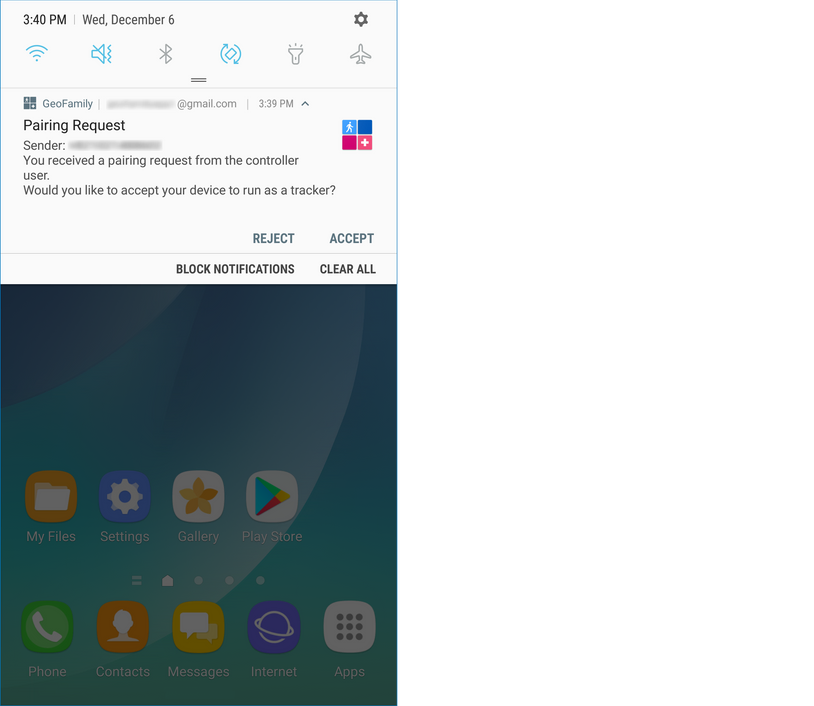
(1) For the tracker user, when it receives the pairing connection request from the controller user, it appears in the tracker user's notification tray.
Clicking on the notification or clicking the 'ACCEPT' button on that will result in a successful pairing connection, from which the tracker user's location and status information will be sent to the controller user.
A pairing success notification is then sent to the controller user.
(2) If the controller user has not received the pairing success notification for a few minutes even though the tracker user has been accepted, or if the success popup has not appeared, go to (3) of procedure 3, and the controller user needs to perform the pairing request again.
NOTE: Rarely, due to the network environment, the installation of the GeoFamily app itself may be wrong, so please try again after uninstalling and reinstalling the app from both the controller user phone and the counterpart tracker user phone in a good network environment.
Screens with the Pairing Connected Finally in between.
Controller User Main Screen :
In the toolbar area at the top, the controller user can see the pairing status icon with green color for the tracker user.

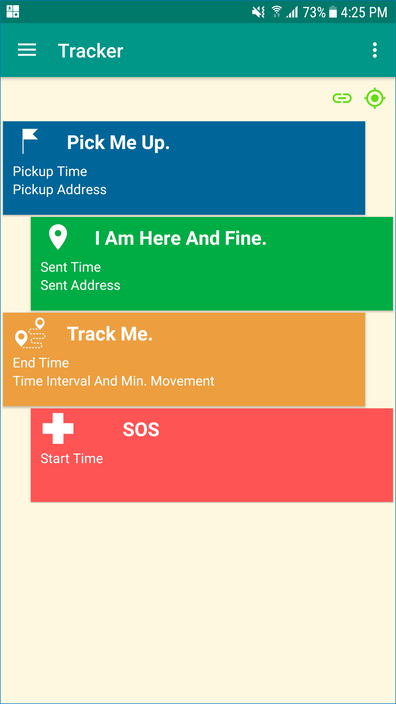
Tracker User Main Screen :
On the top-right corner of the main screen, the tracker user can see the pairing status icon with green color. Tracker users can also see that the text color of the main menu has changed from gray to white.


댓글
댓글 쓰기